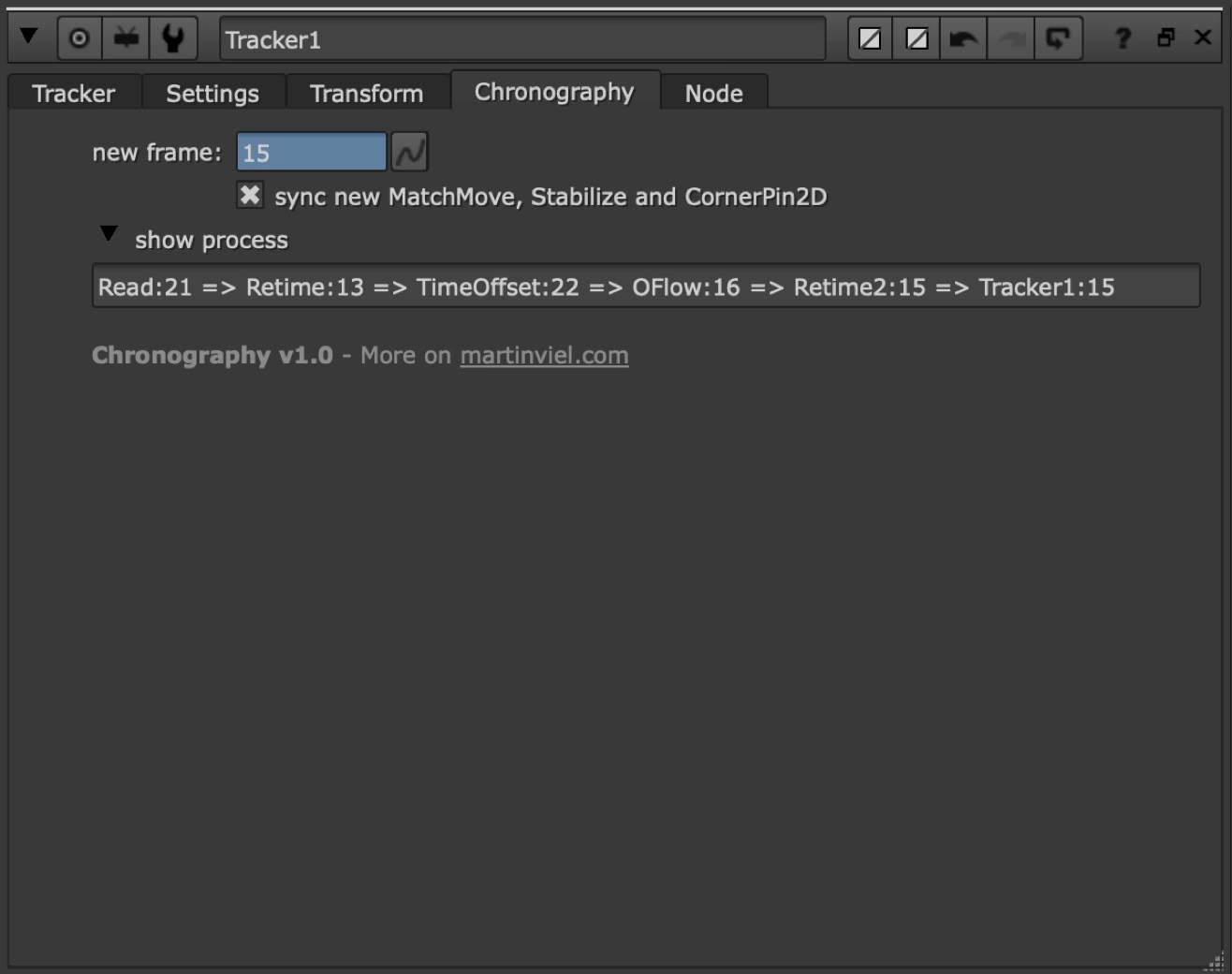
Move a Tracker in the node tree without being limited by time nodes.
How does it work?
1. It builds a time curve that gives you the source frame number of the image.
2. It syncs your new MacthMove, Stabilize and CornerPin2D to that time curve.
Place your Tracker wherever you need it, and the code will walk through your node tree to log how the frame number is being modified, from the Read node down to your Tracker.
Then, it combines all these modifications to build a curve that displays the source frame number of the image.
New MatchMove, Stabilize and CornerPin2D nodes can be then linked to this time curve, keeping them in sync to the source frame number.
How did I build this?
To achieve this result, I did extensive reverse engineering to understand how the 7 main time nodes in Nuke work: Kronos, OFlow, Retime, Offset, FrameHold, TimeWarp, and TimeClip.
I ran dozens and dozens of tests, changing one by one the parameters that affect the frame number, which allowed me to figure out the exact underlying formula behind each of these nodes.
I chose to write most of the code in TCL/Expression to get the new curve instantaneously.
How to install Chronography?
Download this file and put it in your .nuke folder.
In the Chronography tab, the process knob calculates and shows the frame number for all time nodes simultaneously. This may be resource-intensive, so you may choose to keep it hidden to preserve performance.
You should know that Chronography finds its way up into the node tree following 3 rules:
for the Merge and Dissolve nodes, it follows the metainput value
for the Switch node, it follows the which value
for the other nodes, it always goes up the first input (input0)